3 Important Takeaways
- A well-set-up iPhone can become a daily support tool, not just a phone.
- Safety features like Medical ID, Find My, and Check In can help caregivers stay connected without hovering.
- Simple tools like Notes, Siri, Reminders, Calendar, and FaceTime captions can support independence, communication and resources
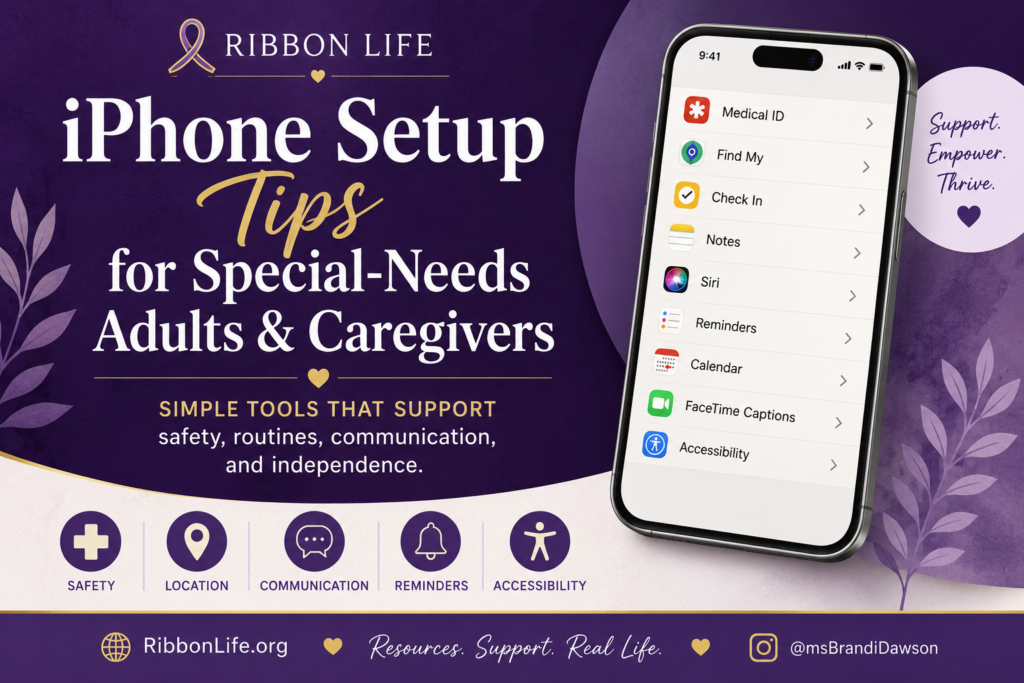
Phones are part of daily life now. For special-needs adults, disabled adults, and caregivers, that can be frustrating sometimes — passwords, updates, notifications, tiny buttons, apps everywhere. Whew.
But when an iPhone is set up thoughtfully, it can also become a support tool.
Not a replacement for care.
Not a babysitter.
Not a magic wand.
Just a small piece of backup for routines, safety, communication, and independence.
Start With the Person, Not the Phone
Before turning on every feature, ask:
- What does this person actually need help remembering?
- What makes them feel safer?
- What feels overwhelming?
- What level of privacy do they want and understand?
- Who should be contacted in an emergency?
- What features support independence instead of creating more control?
That matters. Support should not feel like surveillance.
Set Up Medical ID
Medical ID lives inside the Health app and can show important emergency information, including emergency contacts, allergies, medications, and medical conditions. Apple explains that Medical ID can help first responders access critical medical information from the Lock Screen without needing the passcode.
Helpful things to include:
- Emergency contacts
- Allergies
- Diagnoses or major health concerns
- Medications
- Communication needs
- Mobility or seizure-related notes, if applicable
- Doctor or care team details, if appropriate
Keep this simple and updated. Old medical info can be worse than no medical info. Ask caregivers how they know. 😅
Turn On Find My Thoughtfully
Find My can help locate an iPhone, iPad, AirTag, or other Apple device. Apple’s Find My tools can show a device or item on a map, play a sound, or help guide you toward it when supported.
For caregiving, this may help when someone is:
- Traveling
- At a day program
- Out with support staff
- Learning more independence
- Carrying an AirTag in a backpack, wallet, or bag
Use location tools with consent whenever possible. A good phrase is:
“This is not about watching everything you do. This is so we can help if something goes wrong.”
Use Check In for Safer Arrivals
Check In in Messages can let a trusted person know when someone arrives. Apple notes that Check In can share selected information if the Check In is not completed as expected.
This can help with:
- Going to work or day programs
- Rideshare trips
- Community outings
- Walking inside from the parking lot
- Visiting a friend or family member
This is one of those features that can support independence without requiring constant “Where are you?” texts.
Create Simple Notes
The Notes app can become a mini care file.
Suggested notes:
- “My Emergency Info”
- “What Helps Me Calm Down”
- “My Morning Routine”
- “Medicine Questions”
- “Doctor Visit Notes”
- “Favorite Foods and Comfort Items”
- “Important Phone Numbers”
For caregivers, shared Notes can help reduce the invisible mental load because not everything has to live in one person’s head.
Use Siri for Low-Energy Support
Siri can help with quick reminders, calls, timers, alarms, and simple questions.
Examples:
- “Hey Siri, remind me to take my medicine at 8.”
- “Hey Siri, call Mom.”
- “Hey Siri, set a timer for 10 minutes.”
- “Hey Siri, remind me to bring my wallet when I leave.”
This can be especially helpful for brain fog, ADHD, fatigue, anxiety, or people who do better with voice prompts.
Try FaceTime Captions
Live Captions in FaceTime can show spoken conversation as text during a FaceTime call. Apple notes that Live Captions are not available in every language or region.
This may help people who:
- Process spoken language slowly
- Have hearing differences
- Get anxious during calls
- Need visual reinforcement
- Want help following appointments or family conversations
Use Reminders and Calendar for Routines
Reminders and Calendar can support daily rhythm without needing a full planner setup.
Try reminders for:
- Medication
- Trash day
- Appointments
- Hygiene routines
- Charging devices
- Packing a bag
- Drinking water
- Leaving on time
Use Calendar for:
- Doctor appointments
- Therapy
- Support staff schedules
- Transportation
- Family events
- Program days
Keep labels plain. “Take blue pill” may be more useful than “Medication regimen.” Plain language wins.
Explore Accessibility Features
Apple’s iPhone accessibility features include tools for vision, hearing, speech, physical, motor, and cognitive support. Assistive Access, for example, is designed to make iPhone easier to use by simplifying the experience.
Helpful features to explore:
- Larger Text
- Display Zoom
- Spoken Content
- Voice Control
- AssistiveTouch
- Sound Recognition
- Live Captions
- Assistive Access
- Reduce Motion
- Background Sounds
- Guided Access
Do not turn everything on at once. That is how we create a “helpful” phone that feels like a spaceship. Start with two or three features.
Caregiver Setup Checklist
Use this as a starter checklist:
- Update iPhone software
- Add trusted emergency contacts
- Set up Medical ID
- Turn on “Show When Locked” for Medical ID if appropriate
- Review privacy and location-sharing settings
- Set up Find My with consent
- Practice Check In
- Create simple Notes
- Add important appointments to Calendar
- Add routine Reminders
- Test Siri commands
- Turn on needed accessibility features
- Remove unnecessary apps from the home screen
- Put most-used apps on the first screen
- Review the setup monthly or after major care changes
Final Thought
An iPhone cannot carry the whole caregiving load.
But it can hold some reminders.
It can store emergency information.
It can support communication.
It can make routines easier to follow.
It can help someone practice independence with a little more backup.
That is the goal here: not control, not perfection, not doing the most.
Just a phone set up with care.
📲📱
What iPhone feature has helped your family, your caregiving routine, or your own daily life the most? Share it in the comments so another caregiver or special-needs family can add it to their setup list.